How to Create a New Product
Products are the foundation of every research study — before you can run interviews, you need a product for Frank to understand and reference. This guide walks through creating one from start to finish.
Where Products Live
Products are managed in two places: a condensed view on the Home dashboard, and a full Products index page.
Home Dashboard
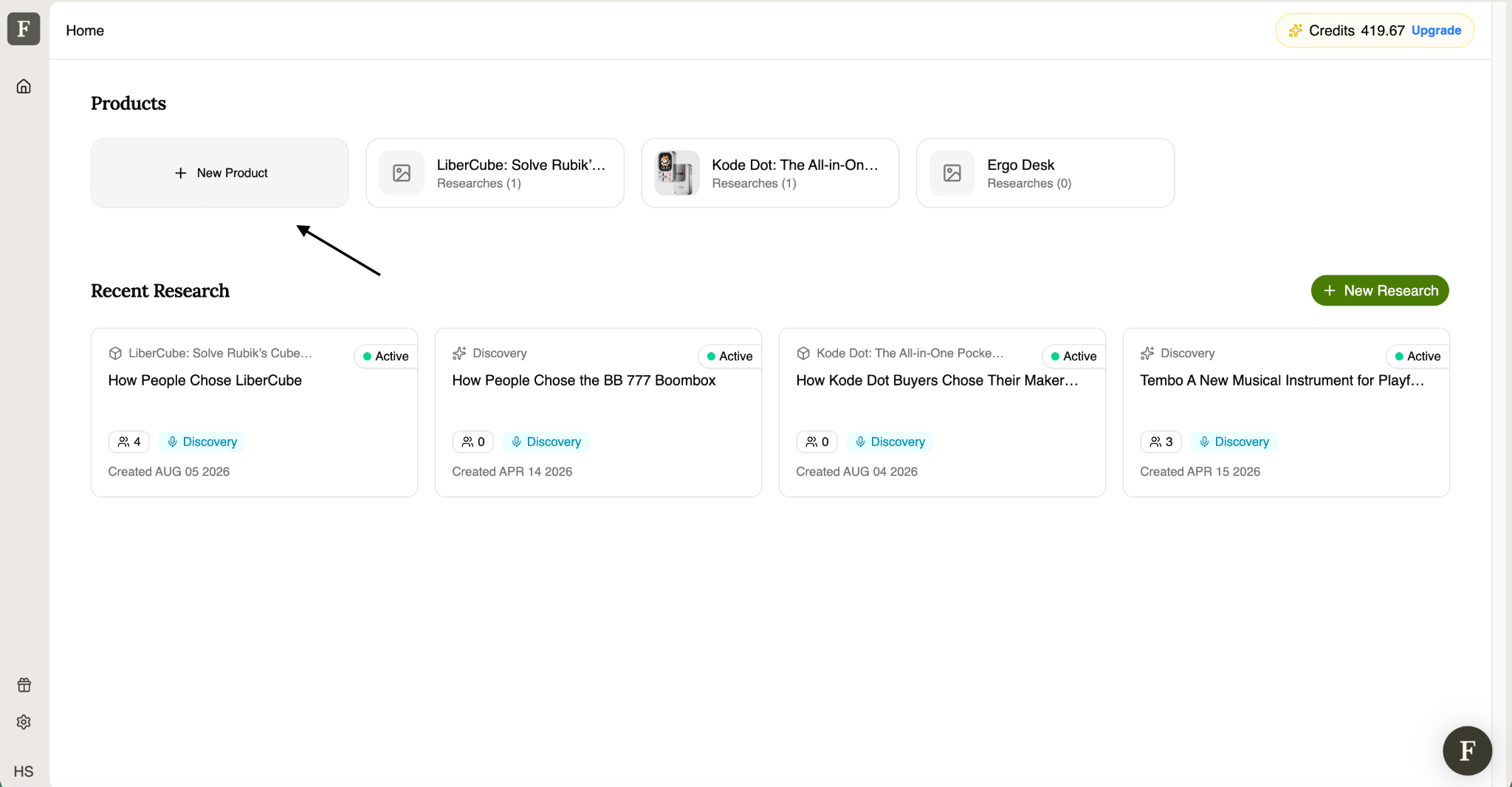
The Home page shows a Products row at the top — a horizontal set of cards for your existing products (icon, name, and research count), plus a New Product tile on the far left to start creating one. Below it, a Recent Research section lists your most recent studies across all products, each showing the study name, participant count, research type tag (e.g., Discovery), and creation date.
Products Page
Clicking Products in the breadcrumb (Home > Products) opens the full Products index. Each product card here shows more detail than the Home row:
- Product icon/thumbnail and name
- Category (e.g., "Toys & Hobbies", "Electronics / Consumer Tech", "Other")
- A short description snippet, truncated with "..."
- File count and URL count — how many supporting files/links are attached
- Creation date
A New Product button (top-right) starts the creation flow from here as well.
Step-by-Step: Creating a Product
Step 1. Start a New Product
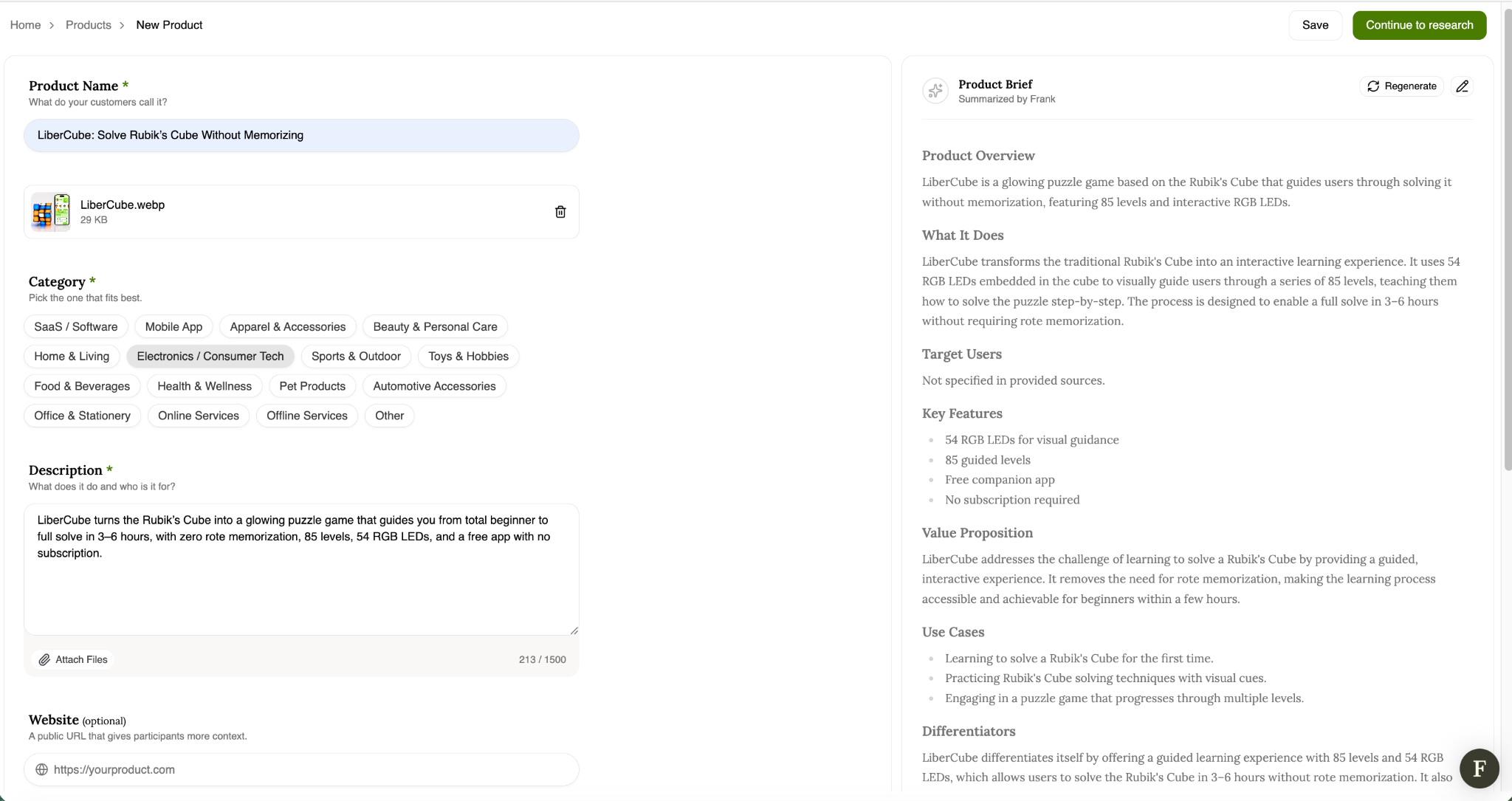
Click New Product from either the Home dashboard's Products row or the Products index page. This opens the New Product form (Home > Products > New Product), a split-screen layout: your input on the left, a live AI-generated Product Brief on the right.
Tip: Before you type anything, the right panel shows a placeholder: "Your Summary lives here — Once you write a description, Frank will rewrite it into a sharp, polished summary." The brief only populates once you've entered a description.
Step 2. Fill In Product Details
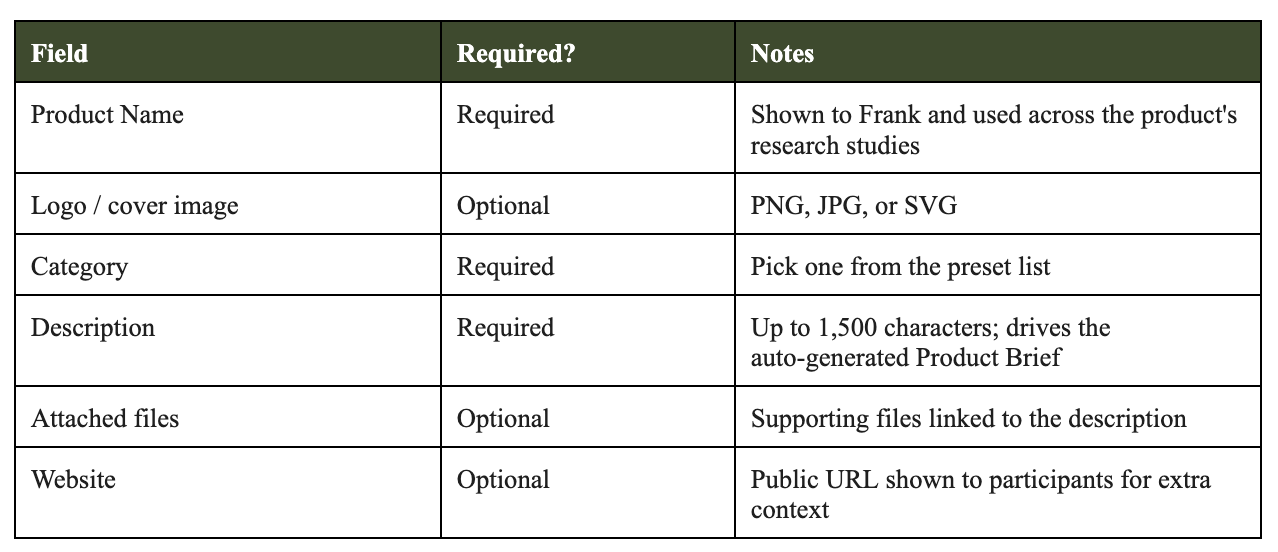
- Product Name * — what your customers call it (e.g., "LiberCube: Solve Rubik's Cube Without Memorizing")
- Add a logo or cover image (optional) — accepts PNG, JPG, or SVG
- Category * — pick the one that fits best from pill-style options: SaaS/Software, Mobile App, Apparel & Accessories, Beauty & Personal Care, Home & Living, Electronics/Consumer Tech, Sports & Outdoor, Toys & Hobbies, Food & Beverages, Health & Wellness, Pet Products, Automotive Accessories, Office & Stationery, Online Services, Offline Services, Other
- Description * — what the product does and who it's for — a free-text box with a 1,500 character limit
- Attach Files — attach supporting files (e.g., product images, one-pagers, spec sheets) directly to the description. Each attached file appears as a small card showing a thumbnail, file name, and size (e.g., "LiberCube.webp — 29 KB"), with a trash icon to remove it
- Website (optional) — a public URL that gives participants more context, e.g. https://yourproduct.com
Step 3. Review the Auto-Generated Product Brief
As you fill in the form — especially the Description — Frank automatically drafts a structured Product Brief on the right, labeled "Summarized by Frank." Two controls sit in the brief's header:
- Regenerate icon — re-runs the summary based on your current inputs
- Edit (pencil) icon — lets you manually adjust the generated text
The brief includes the following sections:
- Product Overview — a one- to two-sentence summary of what the product is
- What It Does — a fuller explanation of how the product works
- Target Users — who the product is for (shows "Not specified in provided sources" if the description doesn't cover this)
- Key Features — a bullet list of standout features
- Value Proposition — the core problem solved and why it matters
- Use Cases — concrete scenarios in which someone would use the product
- Differentiators — what sets the product apart from alternatives
Tip: The richer and more specific your Description (and any attached files), the more complete the generated brief will be. Vague descriptions tend to leave sections like Target Users unfilled.
Step 4. Save or Continue
- Save — stores the product without proceeding further
- Continue to research — saves the product and moves directly into the research setup flow, where this product will already be connected — Frank will reference this Product Brief automatically when you describe your research goal
Quick Reference
Tip: Once created, a product can be reused across multiple research studies — you don't need to recreate it each time you start a new study for the same product.