Navigating Your AI Interviewer Dashboard
Explore results, manage interviews, and share insights from one place.
Overview
Upper left corner of the page
Overview is the default landing tab for a project. It's the first thing you see when you open a project, giving you a high-level snapshot before diving into the detailed sections (Action Items, Research, Chats).
It combines two things: what the product is (Product Brief) and how the research is progressing (Interview Activity).
Product Brief
A summary card describing the product being researched, so anyone opening the project understands the context without reading raw interviews. Expandable sections include:
- Product Overview
- What It Does
- Target Users
- Key Features
- Value Proposition
- Use Cases
- Differentiators
Tip: Only the first two sections show by default — click "Show More" to expand the rest.
Interview Activity
A card showing research momentum — how many interviews have been conducted over a selectable time window.
- Time-range toggle: 7d / 30d / 90d
- Bar chart showing interview counts per day within the selected range
- Summary line, e.g. "4 new interviews this week"
.png)
Action Items
Upper left corner of the page, after Overview
Action Items is an AI-generated to-do list built from insights pulled out of research interviews. After interviews are analyzed, the AI surfaces concrete follow-ups or tasks (e.g., product fixes, features to add, questions to clarify) so the team can turn qualitative feedback into actionable work.
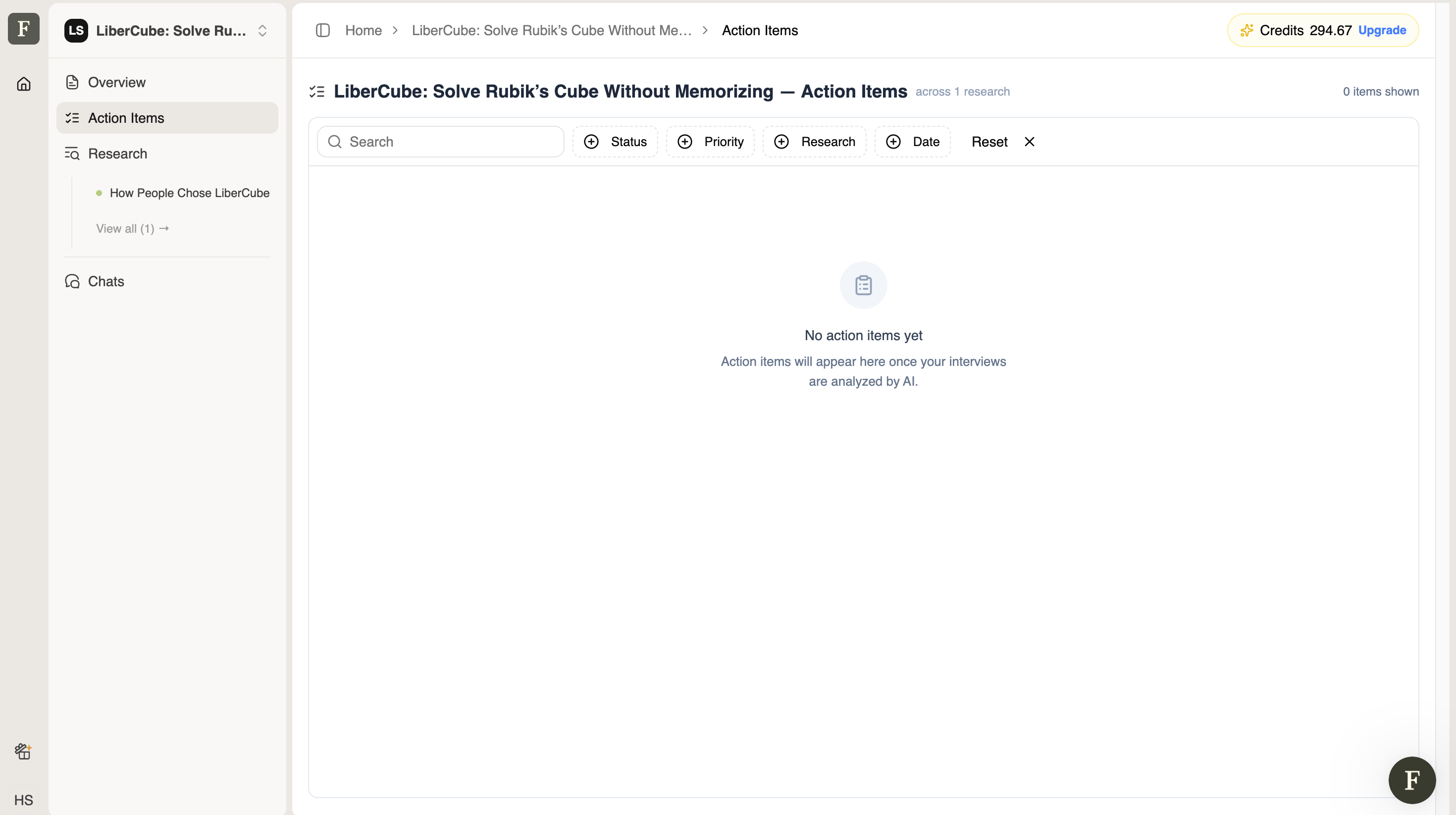
Filters
- Status — Open · Done · Archived
- Priority — High · Medium · Low · Unprioritized
- Research — narrow to a specific study, e.g. "How People Chose LiberCube"
- Date — Last 7 days · Last 30 days · Last 90 days · Custom range (From – To)
- Reset — clears all active filters back to default in one click
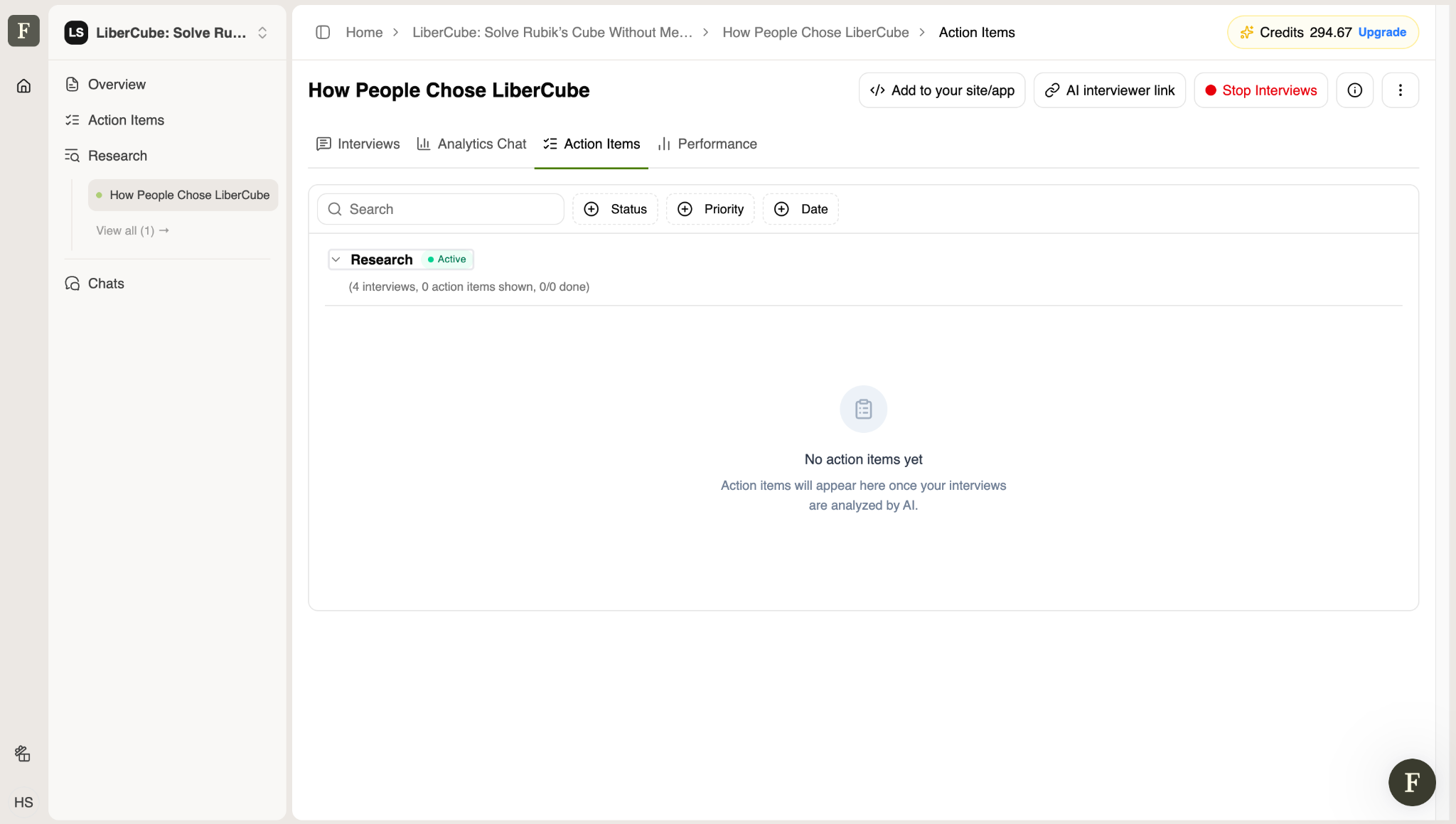
Empty state
"No action items yet — Action items will appear here once your interviews are analyzed by AI."
Tip: This same message currently appears whether no action items exist at all, or the active filters simply exclude every existing item — worth keeping in mind when troubleshooting a page that looks unexpectedly empty.
Research
Upper left corner of the page, after Action Items
The Research section is where individual research studies live. It has two views: the study list, and a detail page for each study.
Research List
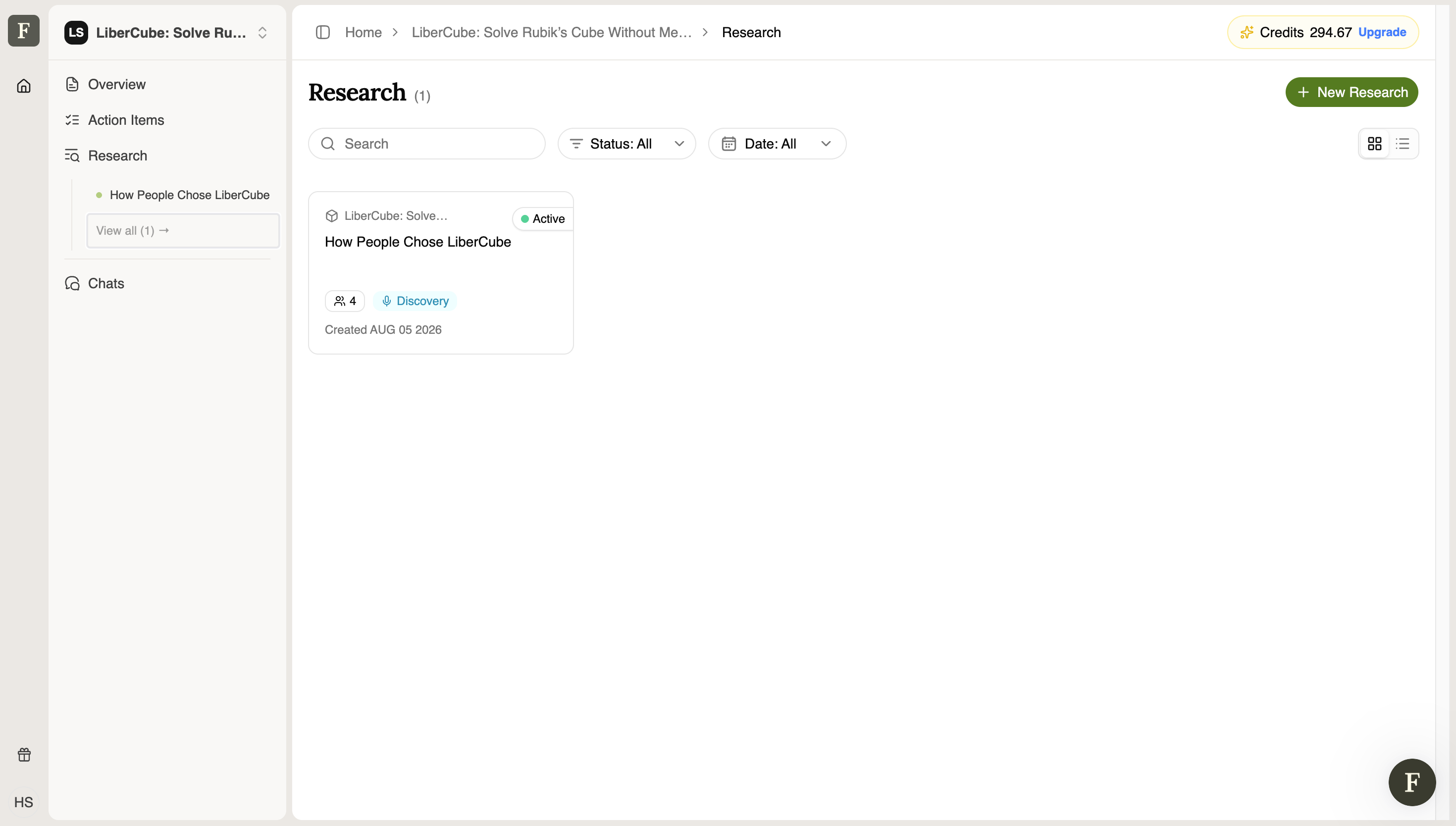
The top-level list of all research studies within a project, opened via "Research" in the sidebar.
- Research (count) — page title showing the total number of studies
- New Research — button to create a new research study
- Search — find a study by name or keyword
- Status filter — e.g. Active, Archived, Draft
- Date filter — filter by creation or activity date
- View toggle — switch between grid view and list view
Each study card shows:
- Status badge (e.g. Active)
- Study title
- Participant count
- Research type tag (e.g. Discovery)
- Created date
Research Detail Page
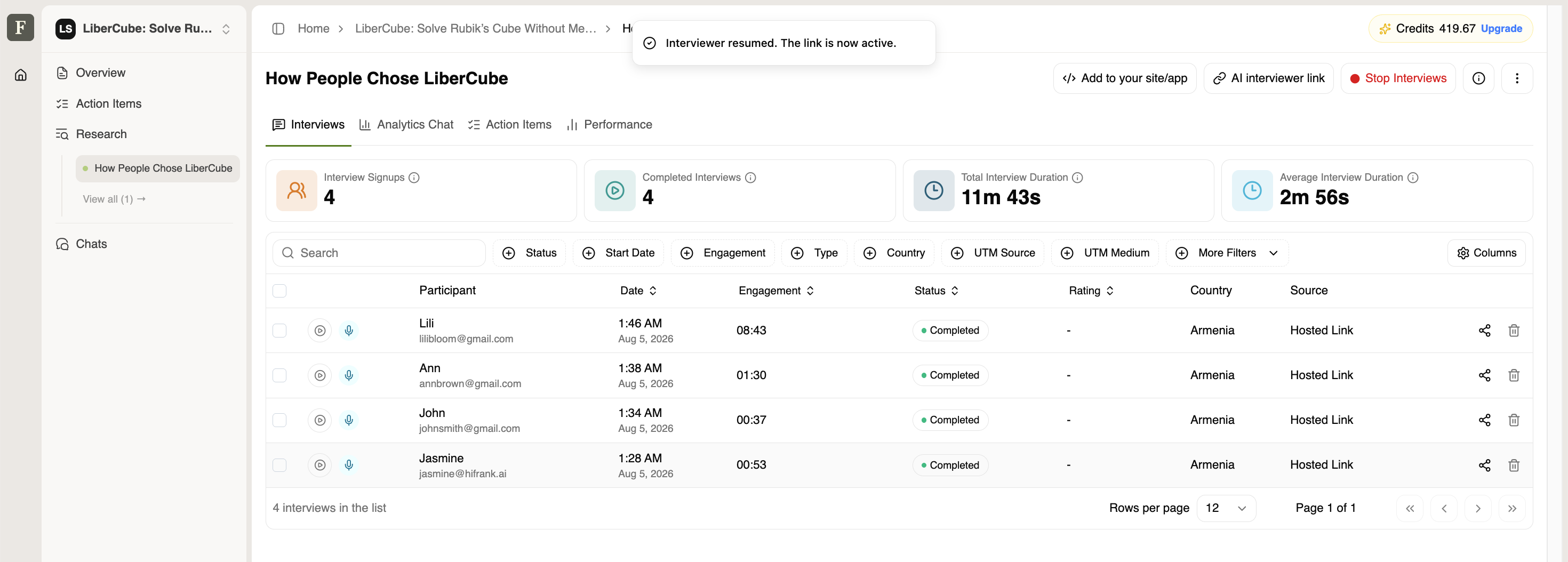
Clicking into a study opens its dedicated workspace, with its own header actions, tabs, and interview data.
Header actions
- Add to your site/app — embed the interview widget into an external website or product
- AI interviewer link — generate a shareable link so participants can complete an AI-moderated interview on their own
- Stop Interviews — pause or close new signups/sessions for this study
- Info icon (i) — opens the Study Info panel — see section 3.3
- More options (⋮) — overflow menu for exporting interviews
Tabs
- Interviews — list of individual interview sessions and participants (default view)
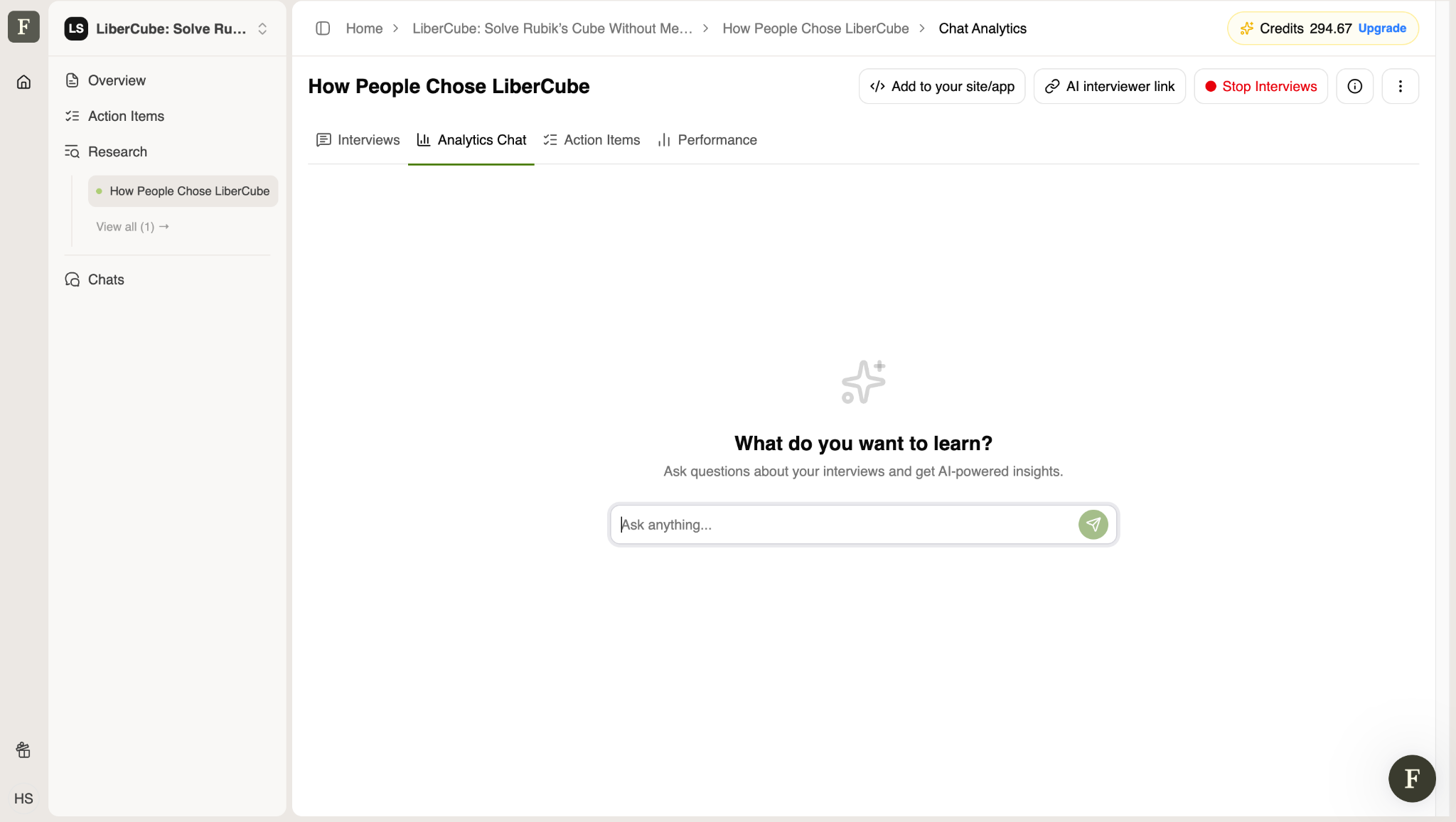
- Analytics Chat — conversational AI interface scoped to this study's data
- Action Items — action items generated specifically from this study
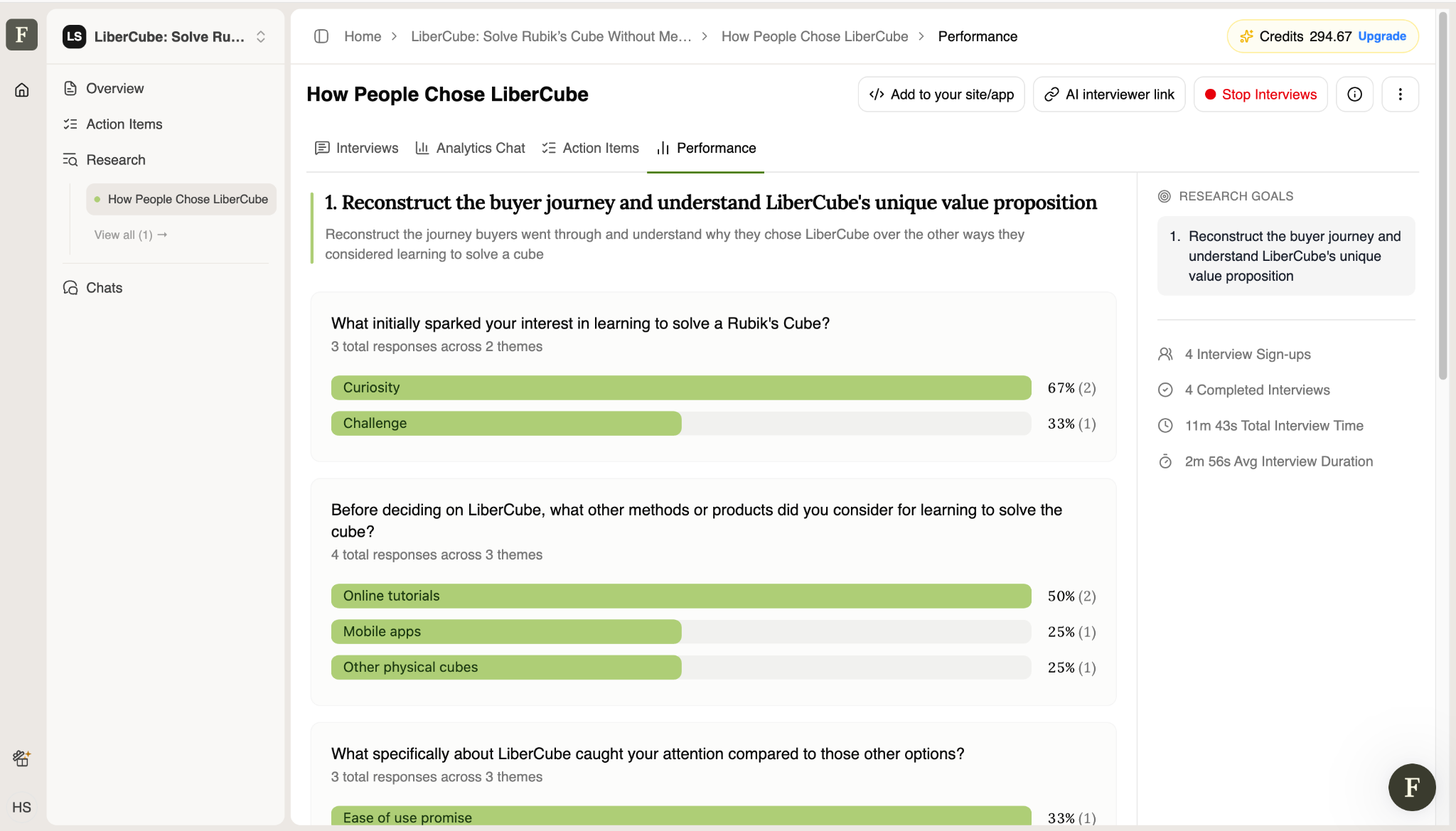
- Performance — performance metrics for the study
Summary metric cards
- Interview Signups — total number of people who signed up or started
- Completed Interviews — total number who finished
- Total Interview Duration — combined time across all interviews
- Average Interview Duration — mean time per interview
Filters, search & table
Filter interviews by Status, Start Date, Engagement, Type, Country, UTM Source, UTM Medium, plus a More Filters dropdown for additional criteria. A Columns button lets you customize which columns are visible.
The interview table includes:
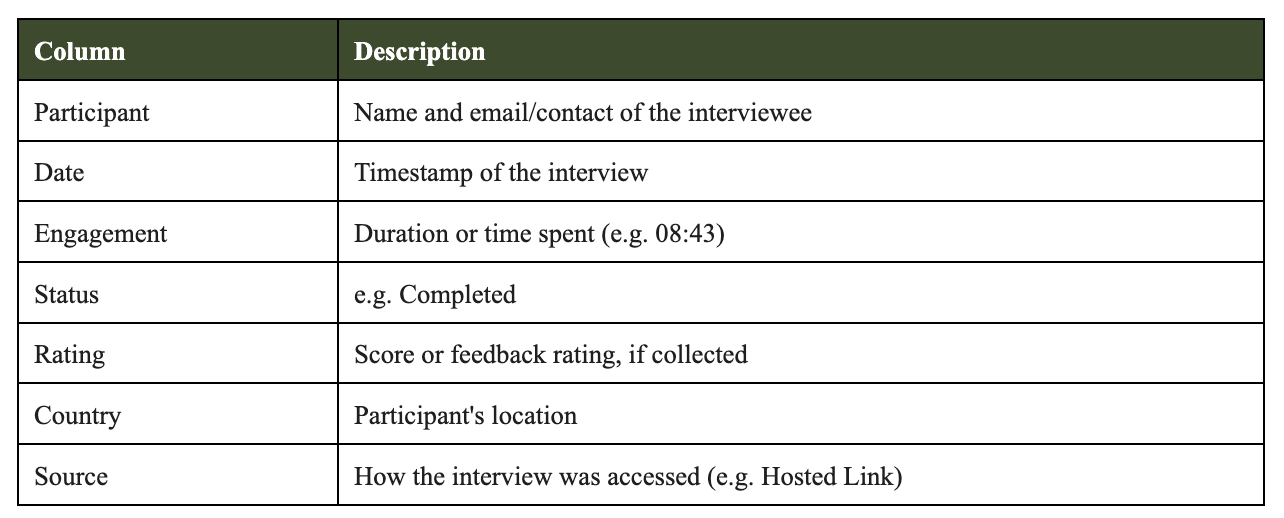
Each row also has quick actions: play/listen, share, and delete. The table footer shows the total interview count, a rows-per-page selector, and page navigation.
Interviews:
.png)
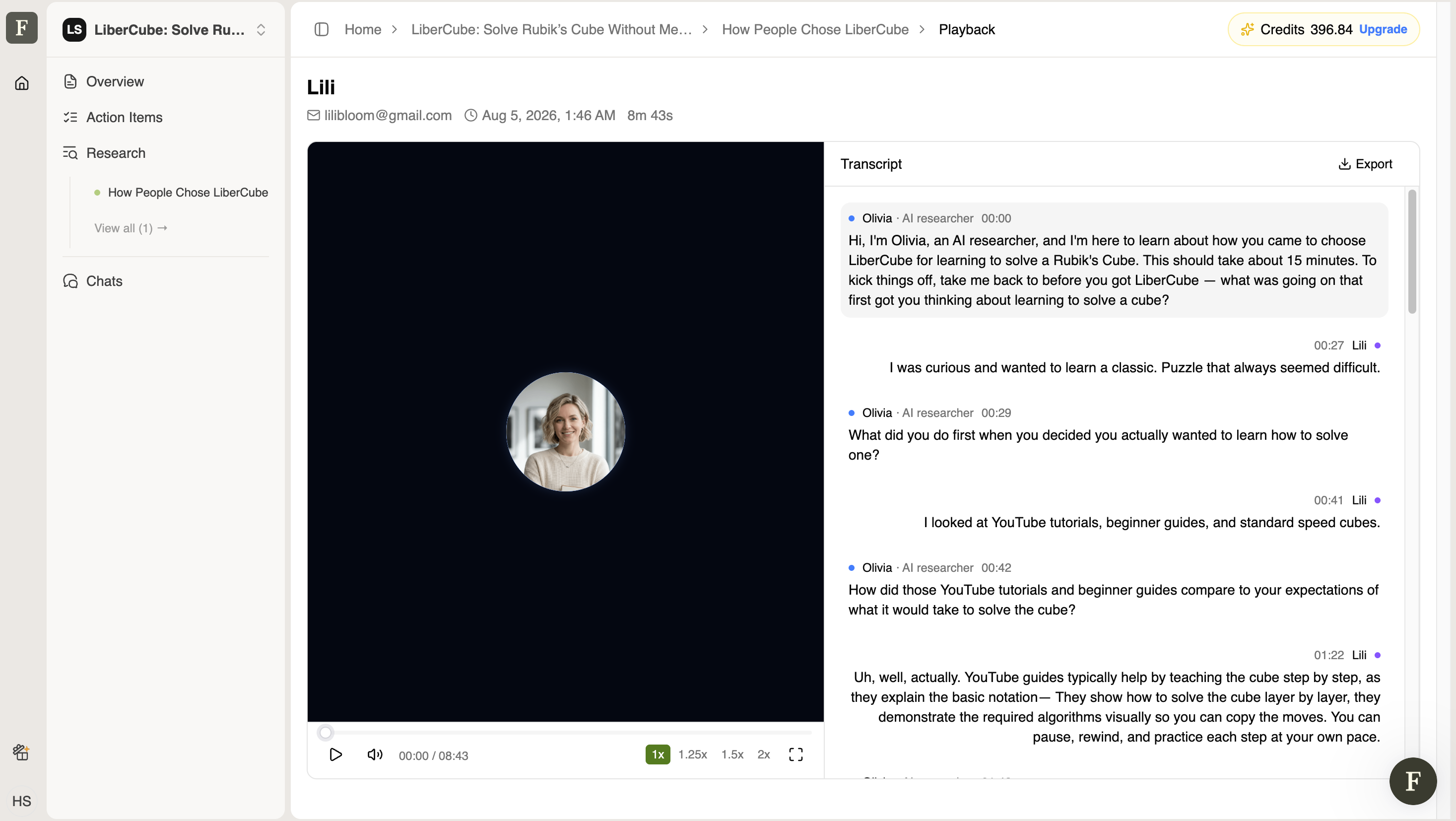
Random Interview Opened:
Analytics Chat:
Action Items:
Performance:
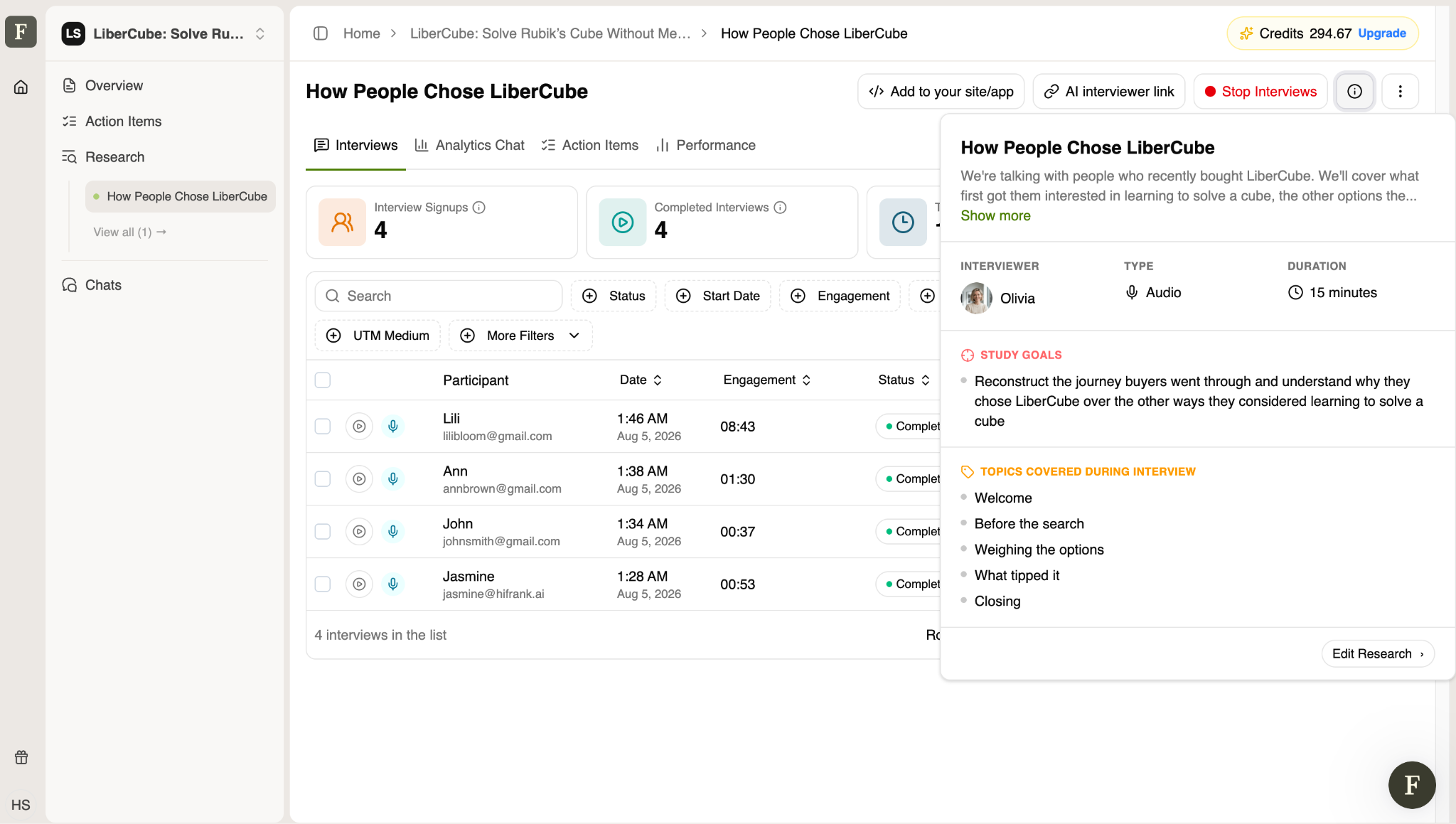
Study Info Panel
Opened via the info icon (i) on a study's detail page, this slide-out panel gives a quick reference to how the study is set up, without leaving the interview list.
- Title & description — study name plus a short summary of its purpose (expandable via "Show more")
- Interviewer — the AI persona conducting interviews, shown with name and avatar
- Type — interview format/medium, e.g. Audio
- Duration — expected length of each interview session
- Study Goals — bullet list of what the research is trying to learn or uncover
- Topics Covered During Interview — ordered list of discussion segments the AI interviewer walks through (e.g. Welcome → Before the search → Weighing the options → What tipped it → Closing)
Footer action:
- Edit Research — opens the study configuration screen to modify the interviewer, goals, topics, or other setup details
Tip: This panel is especially useful for teammates who didn't set up the study — it explains what's being asked and why, without digging into transcripts or the edit screen.
Chats
Upper left corner of the page, after Research
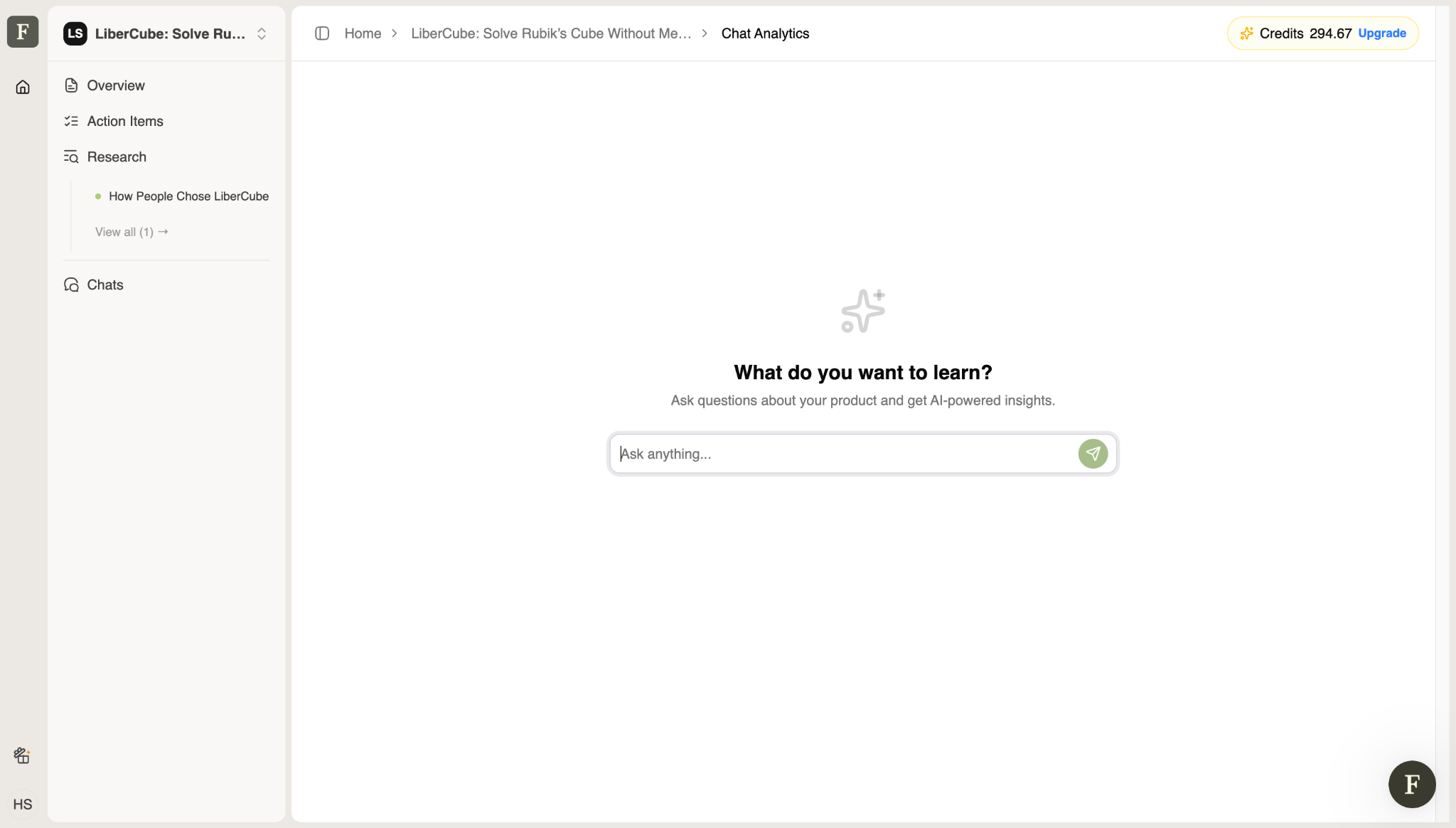
Chats is a project-wide, AI-powered analytics interface. It lets you ask natural-language questions about your research data instead of manually digging through interviews, action items, or reports.
Empty state
"What do you want to learn? — Ask questions about your product and get AI-powered insights."
An "Ask anything..." input field with a send button sits below the prompt.
How it differs from Analytics Chat
The Analytics Chat tab inside a single study (see section 3.2) is scoped to that one study's interviews. The project-level Chats section can likely synthesize across all studies in the project — for example, "Why do people choose LiberCube over other cube trainers?" or "What are the top complaints across all interviews?"
Tip: Once a question is asked, the panel is expected to populate with a chat thread and AI-generated answers, potentially citing specific interviews.
Quick Reference
Overview: Project snapshot: product summary + interview activity trend
Action Items: AI-generated tasks/follow-ups surfaced from interview analysis
Research (list): Browse and create research studies
Research (detail): Manage one study: collect, review, and analyze its interviews
Study Info panel: Quick reference for a study's interviewer, goals, and topics
Chats: Project-wide AI Q&A across all research data
Your AI Interviewer Link
What it is: Your unique interview URL that customers will use to start their interview.
How to use it:
- Test it first: click the link and complete an interview yourself to see the experience from your customer's perspective
- Copy the link: use the "Copy Link" button to grab your unique URL
- Share with customers: distribute via email, in-app message, social media, cancellation flow, or wherever your audience is
Ready-to-Share Templates
Pre-written messages you can use to invite customers to participate. These templates are optimized for different channels and contexts (email, Slack, in-app, etc.).
How to use them:
- Expand the "Ready-to-Share Templates" section
- Choose the template that fits your distribution channel
- Customize the message if needed
- Copy and send to your audience
What Happens Next
Once customers start completing interviews:
- The "No interviews collected yet" message disappears
- Your dashboard populates with transcripts, themes, and insights
- Reals (audio highlights) are generated from key moments automatically
- You can start using AI Analytics Chat to explore patterns in the data
Tip: Run at least 20 interviews before drawing conclusions for statistically meaningful patterns.
AI Interviewer Link
Found in the upper right corner — lets you copy and share your interview link with your audience at any time.

Stop and Resume Interviews
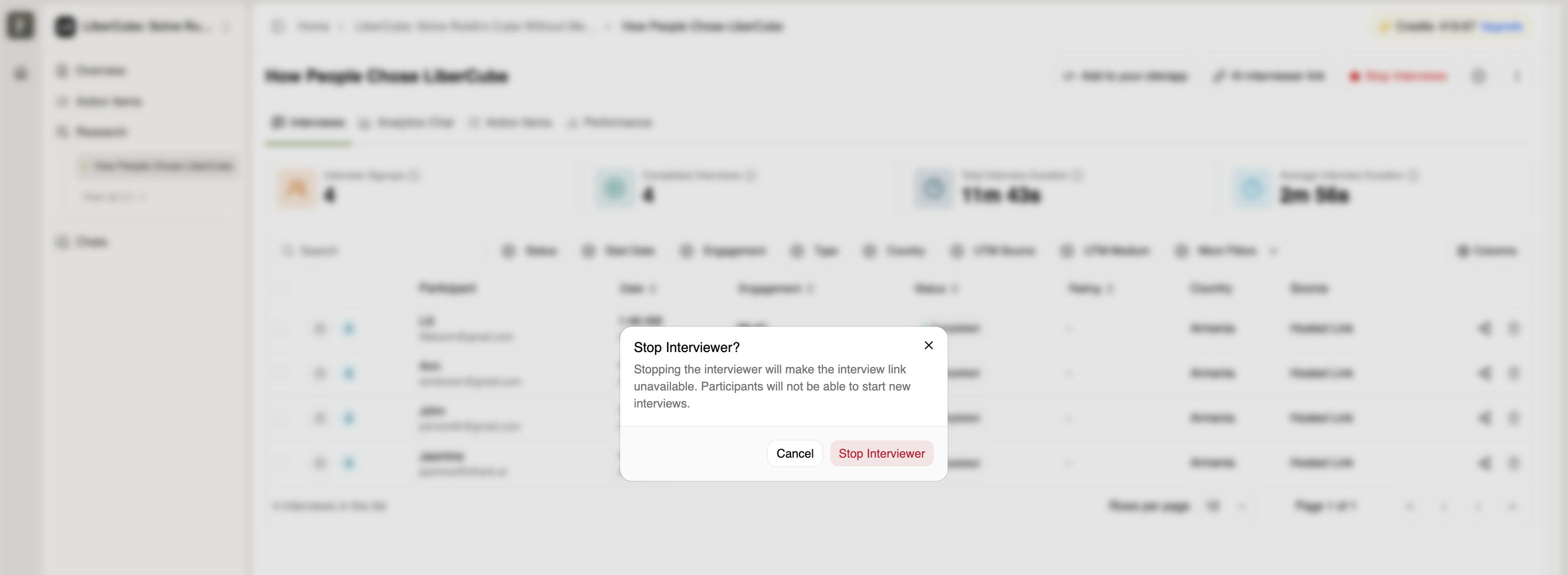
Also in the upper right corner — the Stop Interviews button makes the link unavailable to new participants. Any ongoing interviews will still complete.

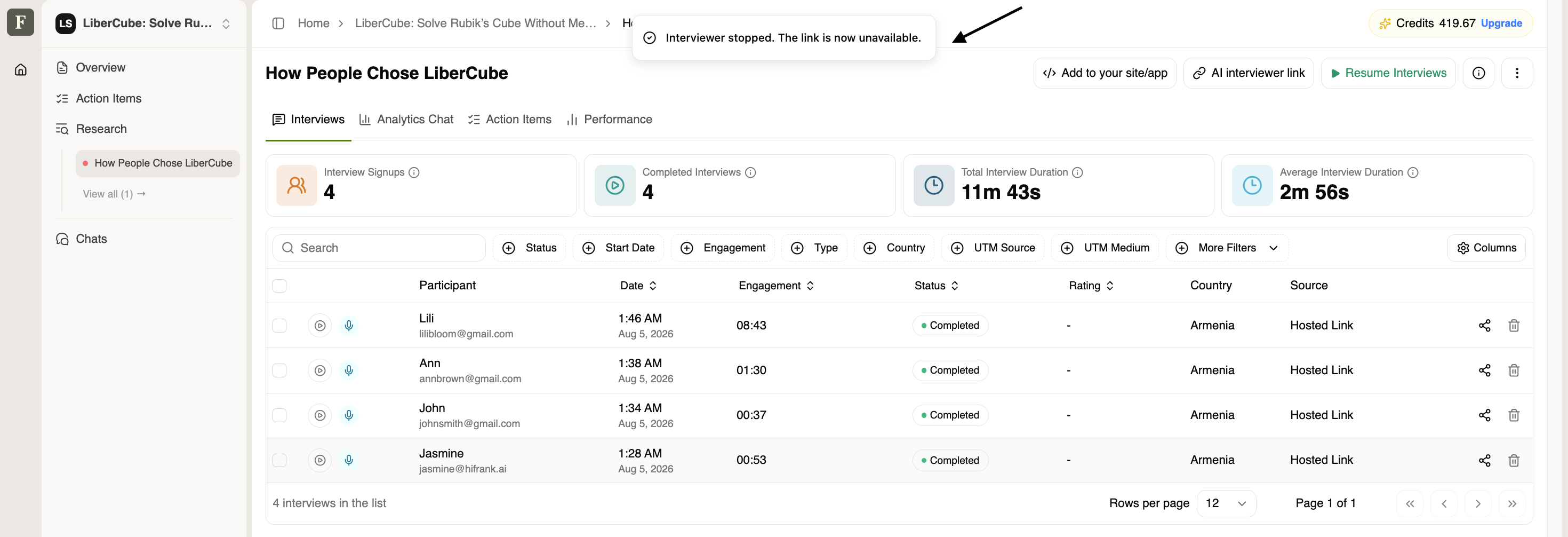
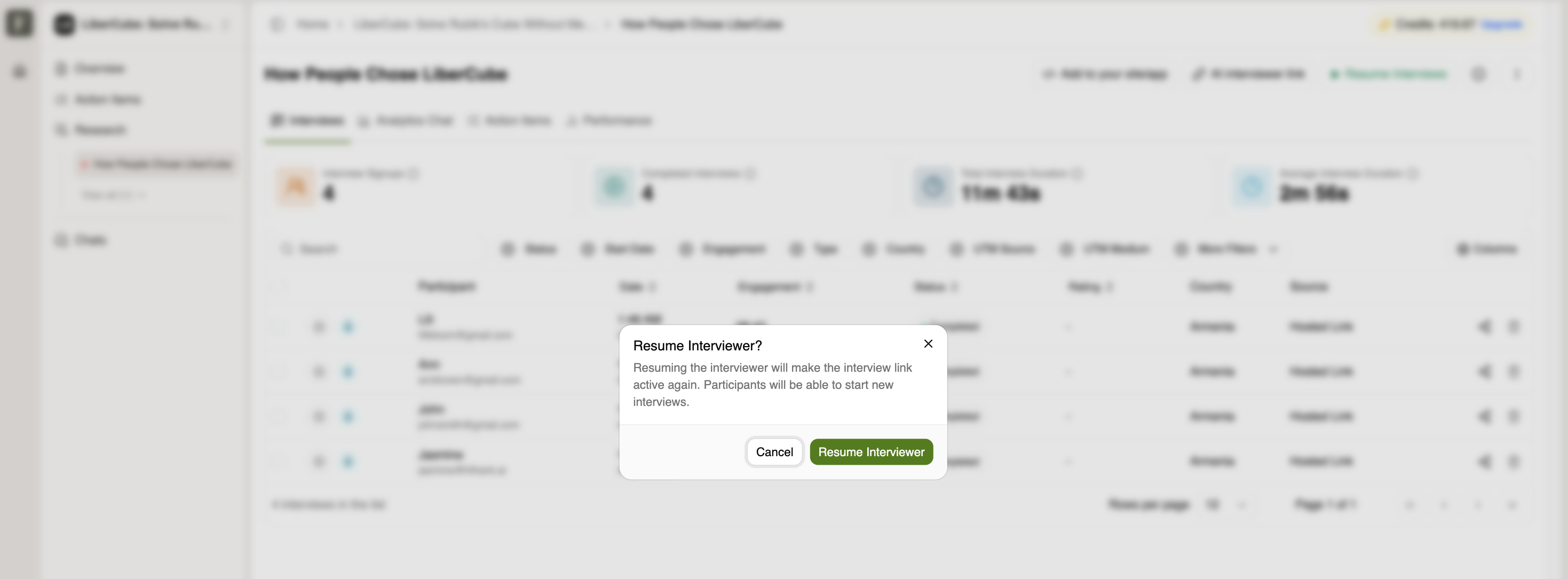
To restore access, use the Resume Interviews button to make the link available again.

Export Interviews
The Export Interviews button (under more options (⋮) overflow menu) downloads your interview data as an Excel file, including participant details, dates, engagement scores, statuses, and other available columns.
